
Set up two-factor authentication and sign in with Google or Microsoft
BrandGuarde now offers three ways to make signing in safer or quicker:
Two-factor authentication (2FA): after your password, you enter a 6-digit code from an authenticator app (or one we email you).
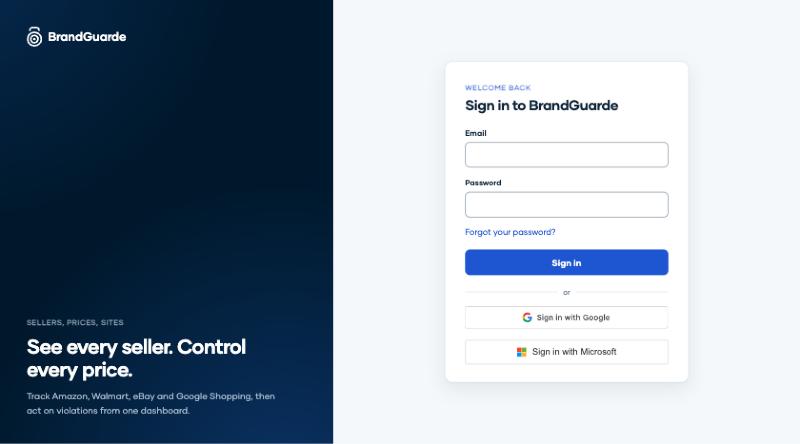
Sign in with Google: use your Google account instead of your password.
Sign in with Microsoft: use your Microsoft account instead of your password.
All three are optional. If you do nothing, you keep signing in with your email and password exactly as before.
Before you start
Google and Microsoft sign-in work only for existing BrandGuarde users. The email on your Google or Microsoft account must be the same email you use for BrandGuarde. These buttons don't create new accounts; if you're new, accept your invitation first.
2FA protects password sign-in. When you sign in with Google or Microsoft, BrandGuarde doesn't ask for its own code; your Google or Microsoft account's security (including any 2-step verification you've set up there) protects that sign-in.
Sign in with Google
Under or, click Sign in with Google. (The button may show in the language of your Google account.)
Choose the Google account that uses your BrandGuarde email, and approve if Google asks.
You're taken straight into BrandGuarde.
Sign in with Microsoft
Click Sign in with Microsoft.
A Microsoft window opens. Sign in with the Microsoft account that uses your BrandGuarde email.
You're taken straight into BrandGuarde.
If you see "Allow pop-ups for this site to sign in with Microsoft", allow pop-ups for app.brandguarde.com in your browser and try again.
If you use a work or school Microsoft account, your company's IT administrator may need to approve BrandGuarde before you can use it. If Microsoft asks for admin approval, contact your IT team or your BrandGuarde account manager.
Turn on two-factor authentication
You'll need an authenticator app on your phone, such as Google Authenticator, 1Password or Authy.
Sign in to BrandGuarde.
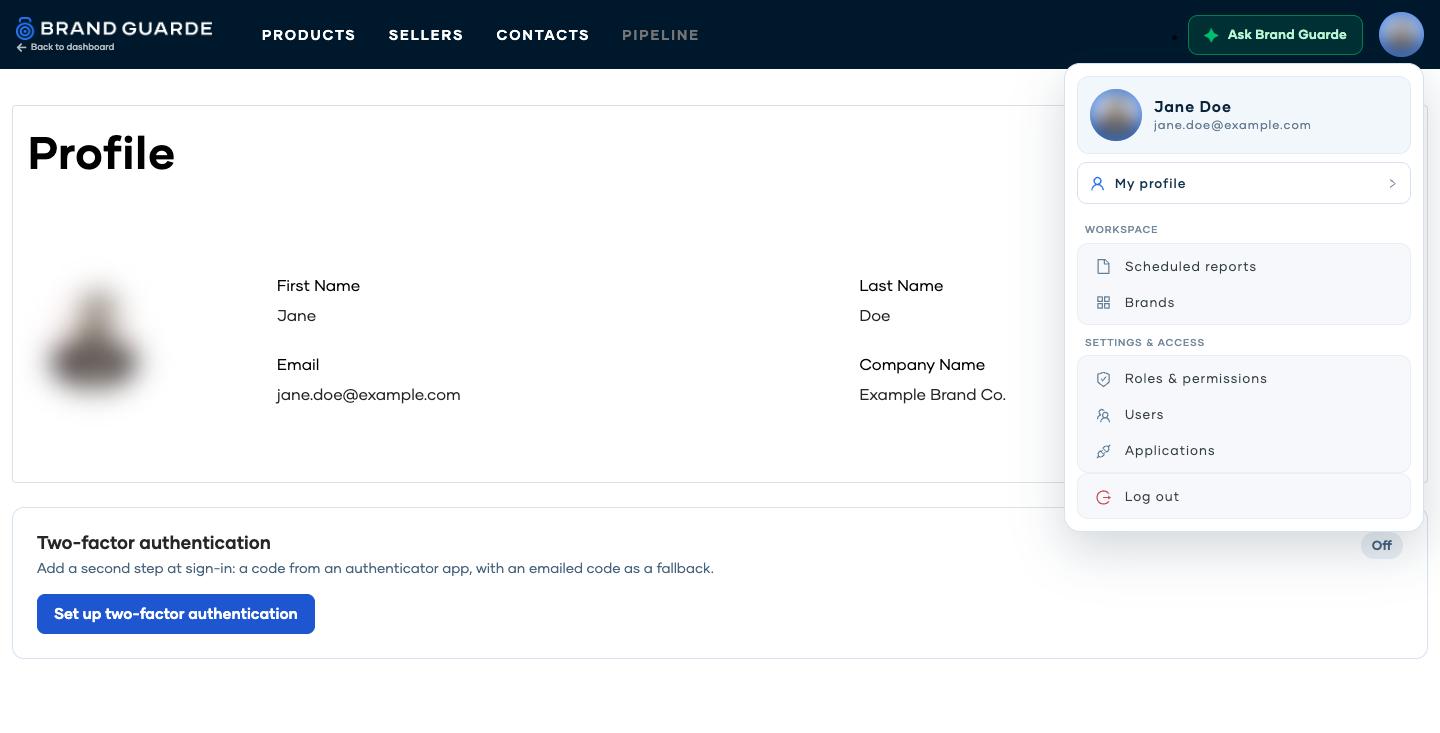
Click your profile picture or initials in the top navigation bar, then My profile.
Find the Two-factor authentication section and click Set up two-factor authentication.
Open your authenticator app and scan the QR code. If you can't scan it, type the key shown under the QR code into the app instead.
Type the 6-digit code the app shows, then click Turn on.
The section now shows On and the date you turned it on.
Sign in when 2FA is on
Enter your email and password and click Sign in.
On Enter your code, type the 6-digit code from your authenticator app.
Optional: tick Remember this device for 30 days so this browser won't ask for a code again for 30 days. Only do this on your own computer.
Click Verify.
Don't have your phone? Click Email me a code instead. We send a 6-digit code to your account email. It expires in 10 minutes, and you can request a new one after a minute. To switch back, click Use my authenticator app.
Manage remembered devices
When 2FA is on, My profile › Two-factor authentication › Trusted devices lists the browsers you chose to remember, with when each was last used and when it expires.
Click Remove next to a device to make it ask for a code again.
Click Remove all to forget every device.
All remembered devices are also removed automatically when you change your password or turn off 2FA.
Turn off two-factor authentication
Go to My profile › Two-factor authentication.
Click Turn off.
Enter your current password and click Turn off again.
Troubleshooting
You see | What to do |
|---|---|
No BrandGuarde account uses this Google (or Microsoft) email. | Your Google or Microsoft email doesn't match your BrandGuarde email. Sign in with your password, or use the account with the matching email. |
Accept your invitation before signing in with Google (or Microsoft). | Open your BrandGuarde invitation email and accept it first. |
This account cannot sign in yet. Confirm your email first. | Confirm your email using the link we sent you, then try again. |
That code is not valid. Check it and try again. | Use the newest code in your app; codes change every 30 seconds. Check your phone's time is set automatically. Each code works only once. |
Too many incorrect codes. Try again in 15 minutes. | Wait 15 minutes, then try again. |
A code was just sent. Wait a minute before requesting another. | Check your inbox (and spam folder) for the code already sent. |
Your sign-in session expired. Please sign in again. | Go back to sign in and enter your email and password again. |
Lost your phone and can't get emails either? Contact your BrandGuarde account manager. We can reset two-factor authentication on your account so you can sign in and set it up again.